After installing the vSphere Hypervisor I wanted to setup VPN connection to my home network. I wanted to do that on Windows Server 2012 and use Active Directory for user management. Here's how I went about it.
1. Install Microsoft Server 2012
I'm skipping the parts where you download it from MSDN, upload the ISO to your datastore, create the VM, mount the ISO and install the server. Installing the server is just skipping through the wizard and getting it up and running.
The only thing I did afterwards and through the vSphere client console was:
- Assign a static IP to the server after installation.
- Enable remote desktop for the server
- Give a meaningfull name to the server ( which is first step in setting up AD in the video tutorial below )
 |
| Note - this is after installing Active Directory + VPN + IIS. |
After that, I switched to RDP for obvious reasons.
2. Install Active Domain Services
From the dashboard - 'add a feature' and install the Active Directory Domain Services. There's
a bunch of tutorials out there, showing how to do it. After installation, you need to setup your domain to make the machine the domain controller. Windows Server will notify you that you have to do this, and it's a walk in the park.
3. Install 'Remote Access' role (VPN) on the server
Again - this is just adding a role to server and there's
a bunch of tutorials for this too. I think the installation process automatically installs the DNS server and configures it correctly, i.e. makes it's default DNS server itself.
I'm using a forward lookup domain so you want to make sure that is set up correctly. Use the top right Tools > DNS and get your ISP DNSs in:
Also - after setting up a VPN connection - I noticed that I had no internet access, nor could I reach other hosts within the network. I changed the DHCP settings to a static pool using Tools > Routing and Remote access > right click on the server and go to properties:
I'm NOT changing the per-user setting of the dial-in permissions, since this would not be workable in a working environment. I'm going to use a network policy for this.
4. Create active directory group with user
I created a user group called VpnUsers in order to simulate a working environment, and created a user in that group. Server 2012 has this nice thing called Active Directory Administration Center which makes this a breeze:
I'm setting up the group - because I don't want to do a per-user setting of the VPN policy.
5. Create a VPN Access policy on the Network Policy Server
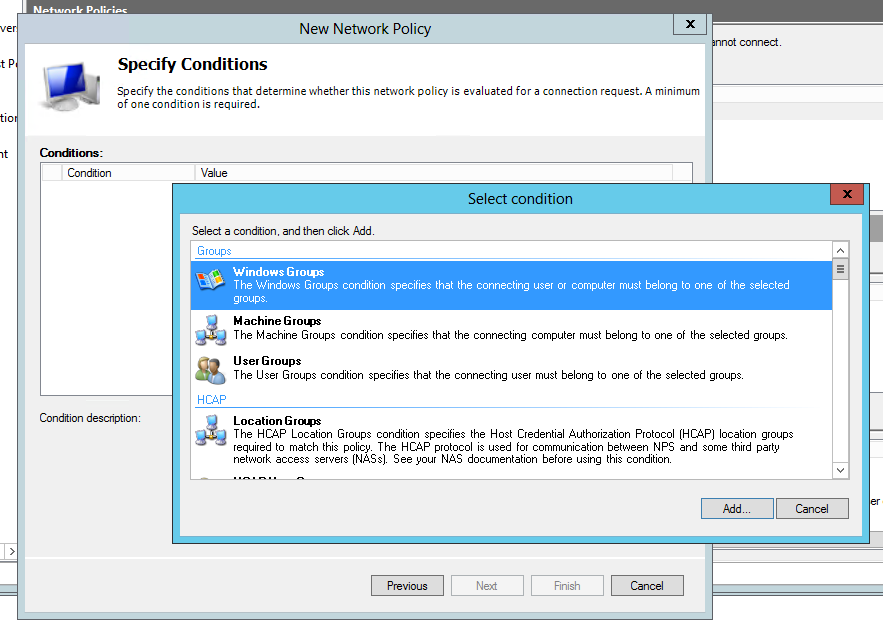
The final step was for me to give these VpnUsers permission to dial-in. Go to the Network Policy Server and set it up in the 'Network Policy' folder.
Right click Network Polcy and hit 'New'. This is what I did:
And presto - you've got VPN set up and with a manageable setup to allow and disallow users to access your VPN.
The only thing left for me to do was to port-forward the PPTP port on 1723 of my router: